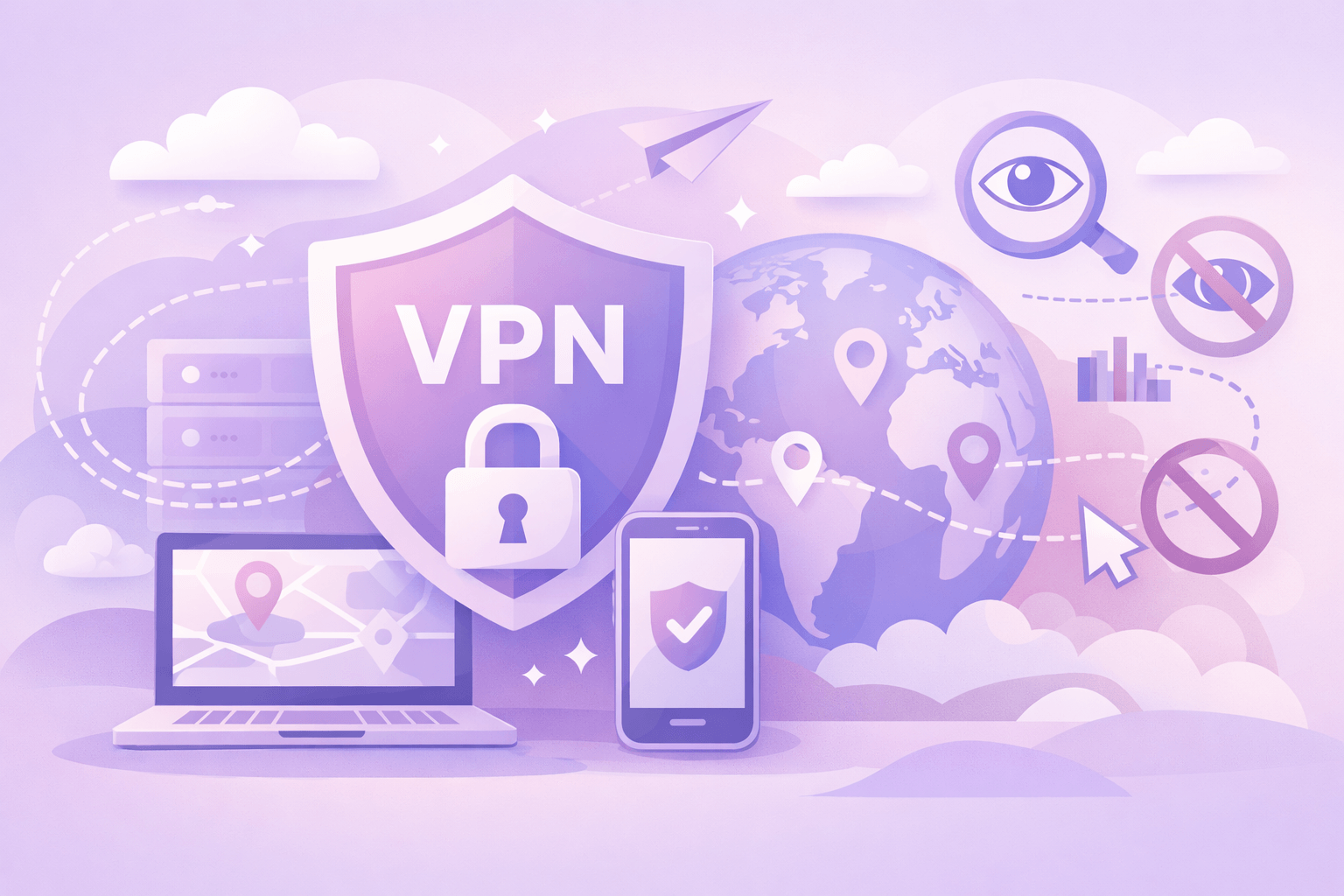
Before Starting Outline VPN Setup
To start using Outline VPN, you first need to choose an access key package that suits your needs. Outline VPN offers three different packages: Basic, Standard, and Premium. Each package offers different traffic amounts and features. After selecting your package, complete the payment process. Once your payment is confirmed, your access key will be instantly delivered to your email address. This key is a unique code that allows you to connect to Outline VPN. After receiving your key, you can quickly complete the setup by following the steps below.
Outline VPN Setup Steps for Windows
To use Outline VPN on your Windows computer, first download the Outline client from our official website. After the download is complete, run the installation file and install the software by following the on-screen instructions. When the installation is complete, launch the Outline application. Click the 'Add Server' button and paste the access key we sent you via email. The key will be automatically verified and the available server list will be displayed. Select the server you want to connect to and click the 'Connect' button. You are now connected to the internet securely. The connection status is indicated by a green indicator in the application interface.
Setup for macOS
To use Outline VPN on your Mac, you can download the Outline app from the App Store or download it directly from our official website. After installing the app, launch it from the Applications folder. Check your security settings in System Preferences and grant network access permission to the Outline application. On the main screen, enter your access key received via email in the 'Access Key' section. If the key is valid, the server list will be displayed. Select the location you want to connect to and start the connection. When the Outline icon appears in the menu bar, you can understand that your connection is active. To disconnect, click the same icon and select the 'Disconnect' option.
Setup for Android Devices
To use Outline VPN on your Android phone or tablet, download the Outline app from Google Play Store. After opening the app, tap the menu button in the top corner and select 'Add Server'. Paste your unique access key in the 'Enter access key' field. After the key is verified, the server list will be displayed. Select the server you want to connect to and start the connection. The Android operating system will request permission for VPN connection, select the 'Allow' option. When a key icon appears in the notification bar, you can understand that your connection is active. To disconnect, you can tap the 'Disconnect' button from the notification panel or within the app.
iOS (iPhone/iPad) Setup Steps
To use Outline VPN on your Apple device, download the Outline app from the App Store. After opening the app, tap the 'Add Server' button. Paste your access key and tap the 'Add' button. After the key is verified, the server list will be displayed. Select the server you want to connect to and start the connection. iOS will request permission for VPN configuration, select the 'Allow' option and enter your Face ID, Touch ID or password if required. When the connection is successful, the word 'VPN' will appear at the top of the screen. To disconnect, you can tap the 'Disconnect' button within the app or turn off the connection from Settings > VPN section.
Setup for Linux Operating System
For Linux distributions, Outline VPN can be used both through graphical interface and command line. Download the appropriate .deb or .rpm package for your operating system from our official website. Install the package you downloaded via terminal (for example for Ubuntu: sudo dpkg -i outline-client.deb). After launching the application, enter your access key and select the server you want to connect to. For command line users, Outline can also be used as a Docker container. After installation, check your system's firewall settings and make sure the necessary ports are open. You may need root privileges when using Outline VPN on Linux.
Common Setup Issues and Solutions
There are some common problems you may encounter during setup and their solution methods. If your access key is not working, make sure the key is copied correctly and does not contain spaces. If connection cannot be established, check that your firewall or antivirus software is not blocking the Outline application. If you are experiencing DNS issues, try changing your device's DNS settings to 8.8.8.8 (Google DNS). If the application is crashing, make sure you are using the latest version and restart your device. If you still cannot connect despite all these issues, you can contact our 24/7 multilingual support team. Our support team will solve your problem within an average of 15 minutes.
Post-Setup Optimization Recommendations
After completing the Outline VPN setup, you can make some optimizations to get the best performance. Always select the server geographically closest to you, this reduces your ping times and increases your speed. You can enable the auto-connect feature to ensure Outline VPN connects automatically every time your device starts. Using the split tunneling feature, you can ensure that only specific applications connect through VPN. Regularly check for application updates and use the latest version. If you are experiencing performance issues, you can find the best connection by trying different servers. To make the most of Outline VPN's 10 Gbps speed support, make sure your internet connection also has sufficient speed.
Related Topics
 03.10.2025
Bitcoin and Crypto Security with Outline VPN: Comprehensive Guide
While Bitcoin and other cryptocurrencies have gained popularity in recent years, they have also become targets for cybercriminals. Attacks on crypto exchanges, ransomware, and account takeover cases are increasing every day. The decentralized and irreversible nature of these digital assets makes security measures critically important. Outline VPN, developed by Google's technology incubator Jigsaw, is a professional solution that provides an extra layer of security for your cryptocurrency transactions. All your crypto transactions are protected with 256-bit military-grade encryption.
 03.10.2025
Online Security with Outline VPN: How to Protect Your Data
Today, internet users are concerned about whether their personal data is safe. Internet service providers, advertisers, and even cybercriminals can monitor your online activities, collect your personal information, and use this data for various purposes. Outline VPN is a secure VPN solution developed by Google's technology incubator Jigsaw, designed to protect your online privacy and bypass internet censorship. With servers in over 75 countries and military-grade encryption technology, it protects your personal data from third parties.
29.04.2026
VPN and Open Source Philosophy: Outline VPN's Reliability and Transparency Advantages
When choosing a VPN service, whether the software is closed source or open source is a critical factor for security and trustworthiness. In closed source VPNs, the code is kept secret by the company; users or independent experts have no way to audit how the software truly works, what data it collects, or whether it contains any security vulnerabilities. In open source VPNs, the entire source code of the software is publicly available. Whether there are backdoors, data leaks, or intentional vulnerabilities can be examined by anyone. Outline VPN, developed by Google's technology incubator Jigsaw, is one of the rare VPN solutions that is completely open source. This transparency makes Outline VPN one of the most preferred options for security.